

First, go here to log in:
https://www.your-site.com/wp-admin
* replace www.your-site.com with your domain
Before you begin
You will need:
- Your phone
- Access to your WordPress login page
- One authenticator app installed on your phone
Use one of these free apps on your phone
Both apps are available on the official Apple App Store and Google Play store for Android. You may also use your favorite authenticator app that generates Time-based One-Time Passwords (TOTP).
Google Authenticator Apple App Store Google Play Store | Microsoft Authenticator Apple App Store Google Play Store |
Setup Steps (takes just a few minutes)
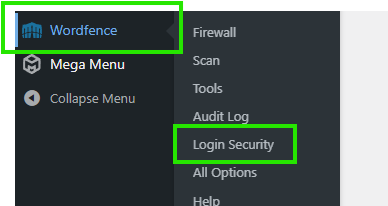
- After you log in, go to WordFence in the left menu and choose Login Security.
- Open your authenticator app on your phone and tap the + button (or scan icon) to add a new account.
- Add your website to the app
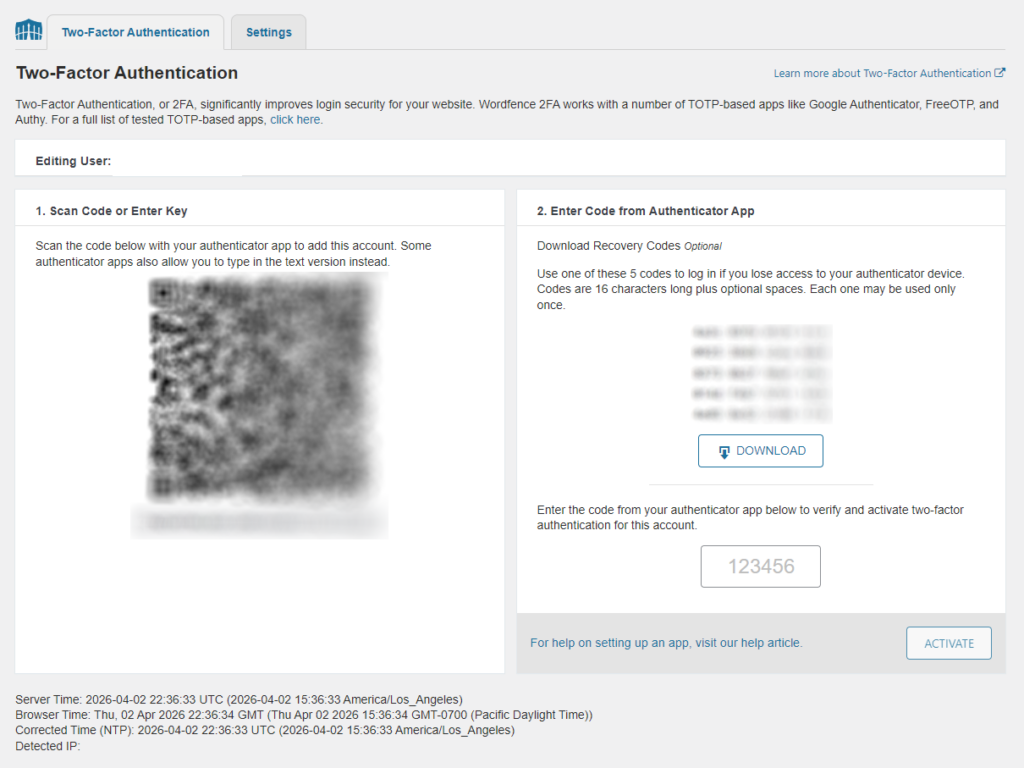
Option A (recommended): Hold your phone camera up to the QR code shown on your screen until it beeps and adds the account.
Option B: If you are on your phone and cannot scan the screen, look below the QR code for the long setup key. In the app choose “Enter key manually” and paste or type that key.
- Save your recovery codes
On the same page as the QR code, click the Download button and save the codes somewhere safe (print them or store the file securely). These are your backup, in case you ever lose your phone.
- Type the current 6-digit code shown in your authenticator app into the box on the screen, then click Activate.
You’re all set!
Setup Steps for a WordFence passkey
An administrator needs to turn passkeys on before anyone can use them. Passkeys are turned off by default on new installations.
- After you log in, go to Wordfence in the left menu and choose Login Security, then open the Options / settings for Login Security.
- Turn on Enable Passkeys.
- Under “Who Can Use Passkeys?”, choose a setting for each role:
- Disabled: that role cannot register or use passkeys.
- Optional: that role can add a passkey, and username and password login still works unless the person chooses “Passkeys only” for their own account.
- Required: that role must use a passkey after any grace period ends.
- On a new site, turning passkeys on for the first time usually sets supported roles to Optional. That is a good starting point.
- To add your own passkey, stay in Login Security and open My Passkeys.
- Enter a name you will recognize later, such as the device or password manager you are using.
- Start registration and approve the prompt from your browser, device, security key, or password manager.
- Confirm that the new passkey appears in your list.
Register more than one passkey, or use a password manager that syncs passkeys to more than one device, before you rely on this as your main login method. Test passkey login in another browser, another device, or a private window before you log out.
An administrator can view or remove another user’s passkeys, but cannot register a new passkey for someone else. That person has to complete registration in their own browser.
On WordPress multisite, Wordfence passkeys are currently limited to Super Admins.
To log in next time
Each time you log in:
- Go to https://www.your-site.com/wp-admin/
- Enter your username and password.
- Open your authenticator app and enter the current 6-digit code.
Alternative option: the official WordPress Two Factor plugin
If a site does not use Wordfence Login Security, WordPress.org maintains an official Two Factor plugin. It is built and supported by WordPress contributors.
That plugin includes:
- Authenticator app (TOTP), such as Google Authenticator, Microsoft Authenticator, Authy, or 1Password
- Email codes
- Backup codes
Passkeys are not built into that plugin yet. For passkeys or hardware security keys, WordPress recommends installing the companion Two-Factor Provider: WebAuthn plugin. It adds passkey support (Windows Hello, Touch ID, YubiKeys, and similar) as another method inside Two Factor.
Each user sets this up under Users, then Your Profile, in the Two-Factor Options section.
If Wordfence is already installed and handling login security, use Wordfence rather than adding a second 2FA plugin on top of it.
Helpful Tips
- The 6-digit code changes every 30 seconds. If the timer is almost done, wait for the next code.
- Keep your recovery codes in a safe place and do not share them.
- If you switch phones later, you can deactivate 2FA and set it up again from the Login Security page.
- If you get stuck and,
- Are an existing client, contact us using this Support form and we can help
OR - Are a Lee & Associates client or office representative, please contact us using this form in lieu of our standard support form above.
- Are an existing client, contact us using this Support form and we can help