

1) Sign into your wpengine.com account.
2) Navigate to the website install that you would like to create a backup for
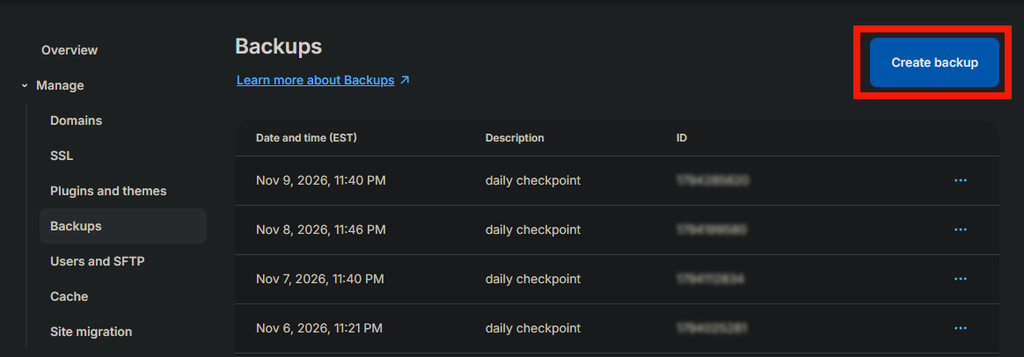
3) Navigate to the Backups dashboard in the Manage section of the menu and click the “Create a Backup” button
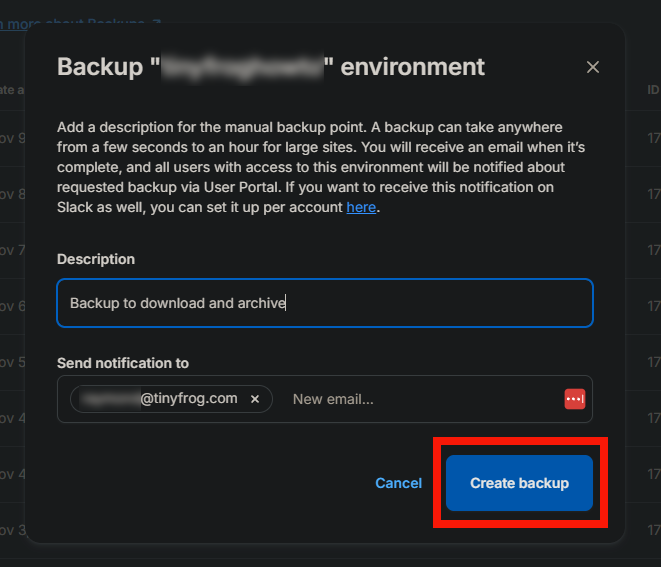
4) Give the backup a description and ensure that your email address is listed as a notification recipient, then click the “Create Backup” button
5) You will receive an email when your backup is ready. Return to, or refresh, the WPEpengine backups page for your website’s install and click the three dots to the right of the backup you’ve created and select the “Download” option.

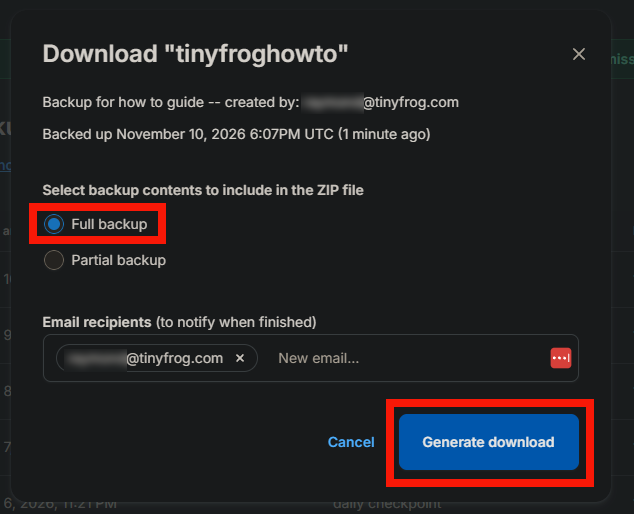
6) Choose the “Full backup” option, and ensure that your email address is listed as a notification recipient, then click the “Generate Download” button
7) You will receive an email when your download is ready. Return to, or refresh, the WPEpengine backups page for your website’s install and click the “Download” option.

Note that the download link expires in 7 days. You will need to download the backup file within 7 days of generating the download link, or you will need to go through the process to generate the download again. Backups are stored by WPEngine for 30 days, additional details on backups and restore processes are available within WPEngine’s documentation at https://wpengine.com/support/restore/