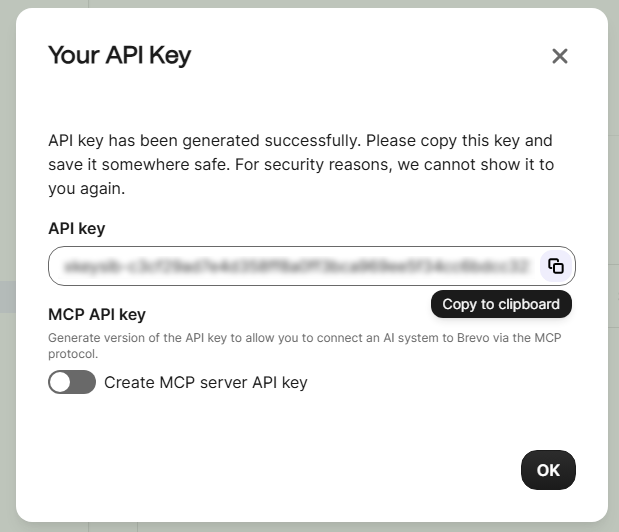

Generate Your Brevo Transactional Email API Key
- Create a Brevo account if you do not have one. You can choose the free account option below the paid plans on the plan selection page if your website will be sending less than 300 emails per day.
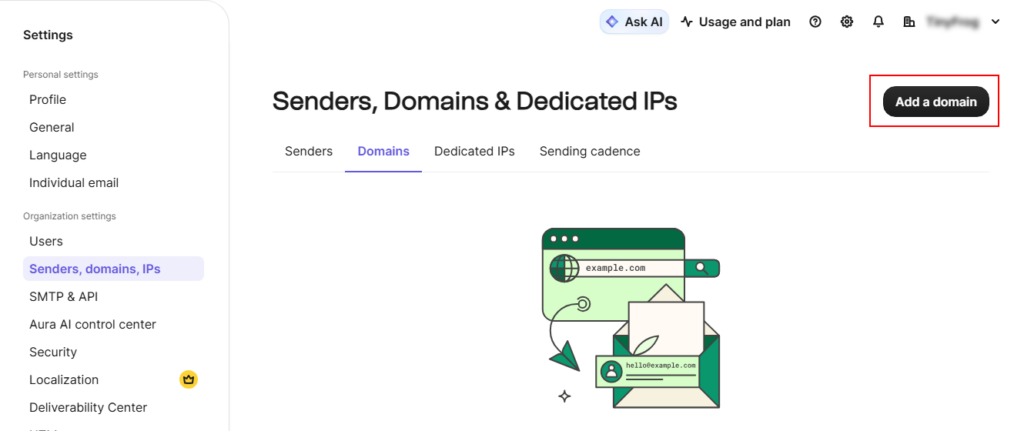
- Go to your Brevo sending domains and add your website’s domain by clicking the Add A Domain button.
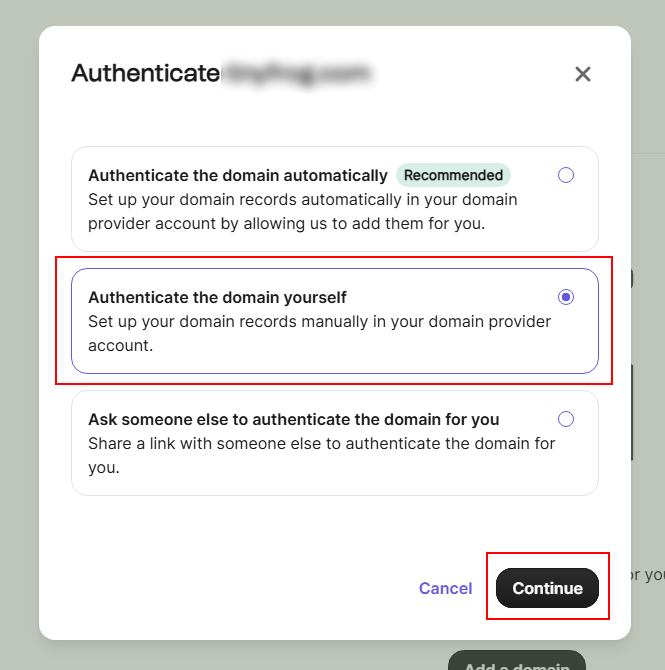
- If you or your IT team will be adding the DNS records needed to authenticate your domain with Brevo then you can choose the method you’d prefer from the list of options and after you’ve authenticated the domain you can skip to step 5.
If TinyFrog will be assisting with adding the DNS records to authenticate the domain then choose the Authenticate the domain yourself option and click Continue.
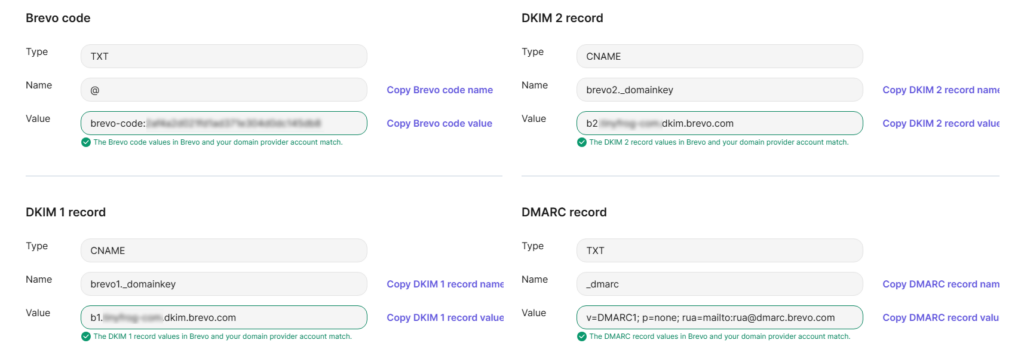
- Copy and paste each of the Name / Value pairs into an email for Brevo code, DKIM 1 record, DKIM 2 record, and DMARC record and send these values to the TinyFrog team member who is assisting with the Brevo set up.
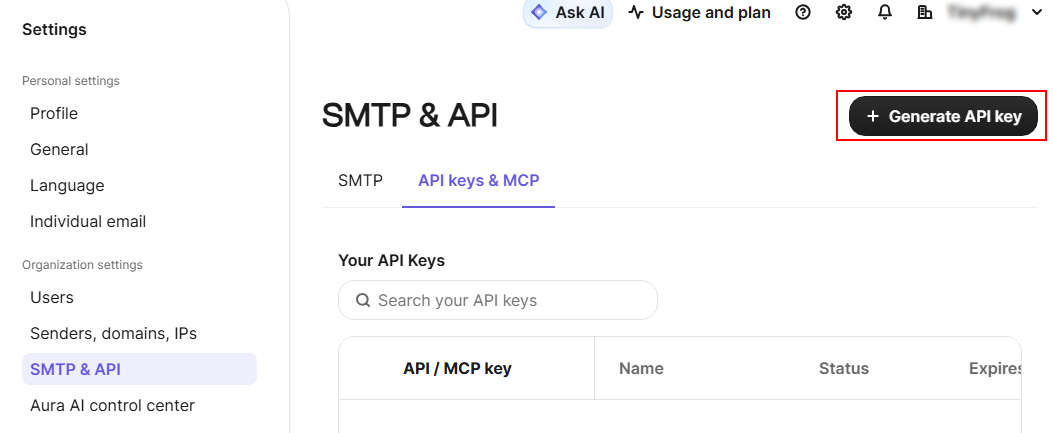
- Go to your Brevo API key settings and click the Generate API Key button.
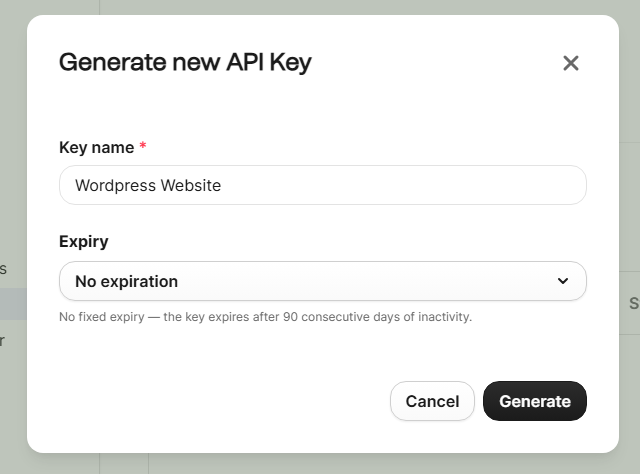
- Enter a Key name for your API key to describe what the API key is for, such as “Wordpress Website”, choose No expiration from the Expiry dropdown, then click the Generate button.
- Copy the API key and send it to the TinyFrog team member who is assisting with the Brevo set up.