How-To Instructions
Note, as of November 2025, ReCaptcha is free up to 10,000 assessments per month. See pricing:
https://docs.cloud.google.com/recaptcha/docs/compare-tiers
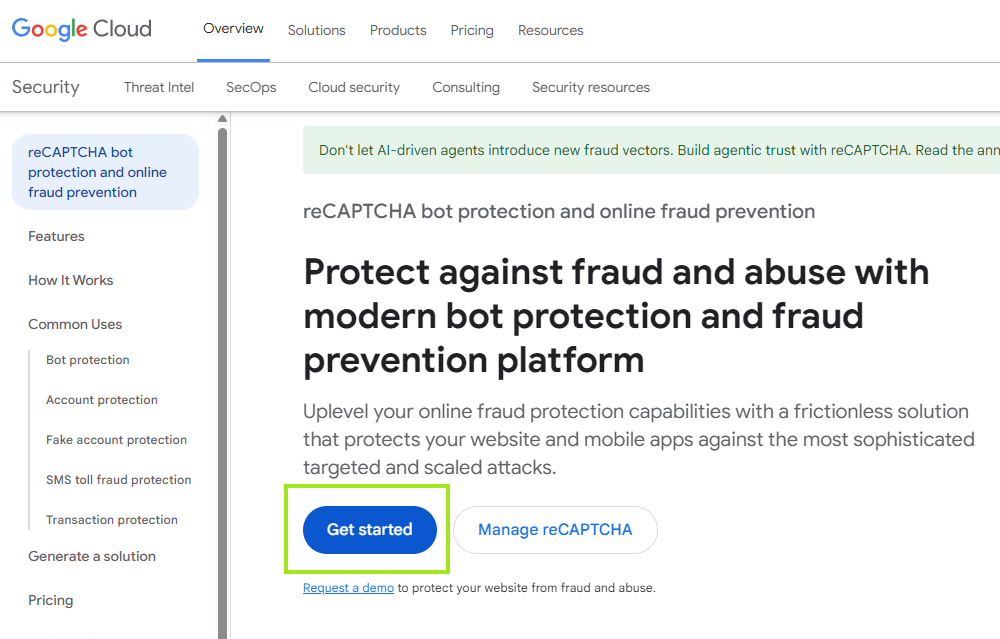
1. Go to https://cloud.google.com/security/products/recaptcha and click the “Get started” button.
If you already have set up a recaptcha key, you can click “Manage ReCAPTCHA” to view existing keys instead.
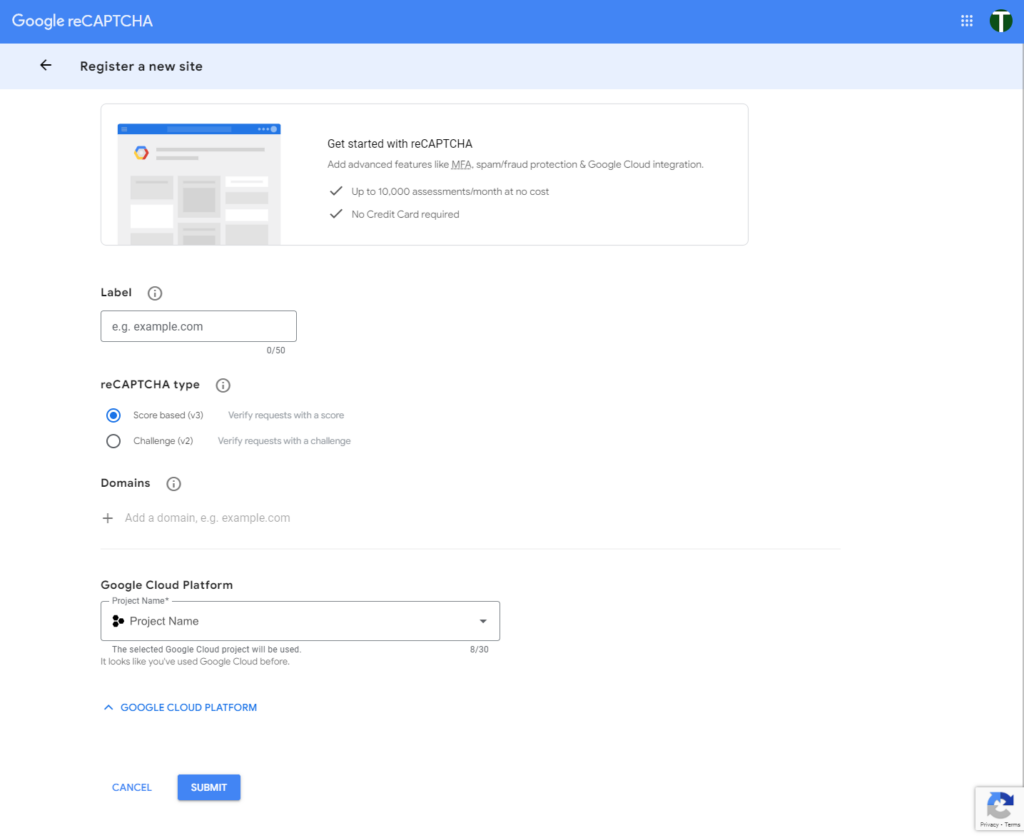
2. Fill out “Register a new site” form
- Label: enter your domain, e.g.: example.com
- reCAPTCHA type: Score based (v3)
- Domains: “Add a domain, e.g. example.com”
- Please enter your domain name without the “www”, in the format: example.com
Click the + button to add another domain and enter: wpenginepowered.com
- Please enter your domain name without the “www”, in the format: example.com
- Google Cloud Platform “Project Name:”
- Here enter a name for your new Google Cloud Platform Project, or select one you’ve already created from the select drop down.
- Click “Submit”
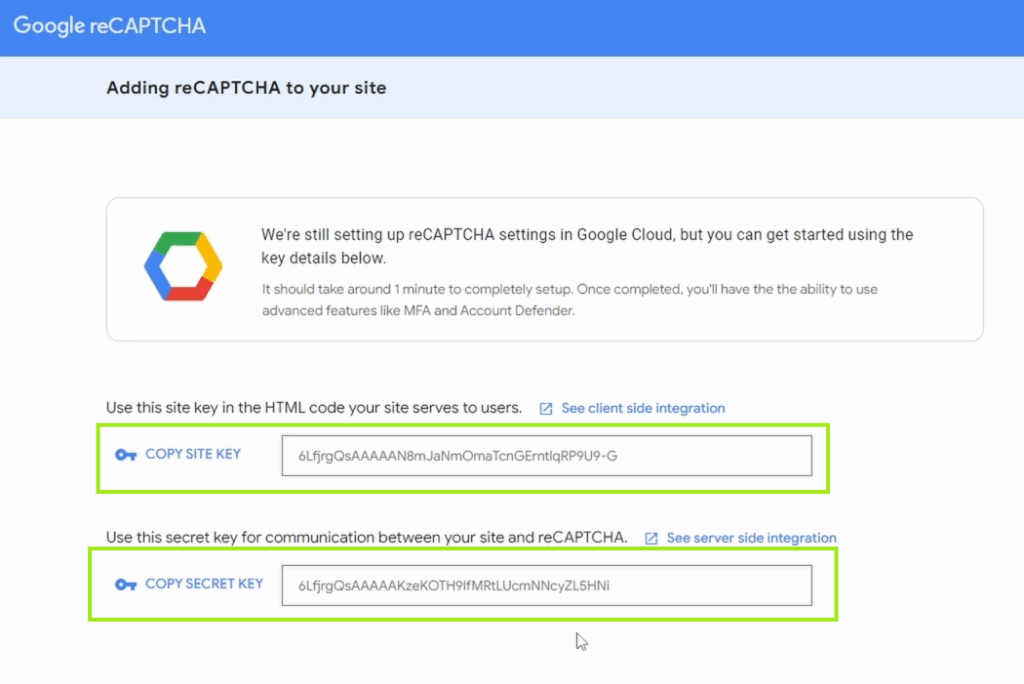
3. Copy and paste both the “site key” and “secret key” into an email to the developer or project manager who requested them.
Last Updated:
