


Google moved reCAPTCHA docs off developers.google.com/recaptcha. New keys are created in Google Cloud Fraud Defense. Tiny Frog uses these keys with the Gravity Forms reCAPTCHA add-on (score-based / v3) to cut spam on your forms.
You create the keys in your Google account. Then email both keys to the Tiny Frog developer or project manager who asked for them. Tiny Frog installs and configures them on the site.
What to create
Create one Score based (v3) key for the live website.
Do not choose Challenge (v2) / “I’m not a robot” unless Tiny Frog asked for a checkbox challenge. Score based (v3) is the default for Gravity Forms on Tiny Frog sites.
You will send two values:
- Site key (public)
- Secret key / legacy secret key (private)
Treat the secret key like a password. Do not post it in a ticket comment that is visible to other vendors, and do not put it in the page source.
Creating a key does not require a paid Google Cloud plan. Google’s Essentials tier is free up to 10,000 assessments per calendar month per organization. Do not turn on billing or paid Fraud Defense features unless Tiny Frog asks you to.
1. Open the reCAPTCHA key creation page
Go to the Google Cloud Fraud Defense admin console:
https://www.google.com/recaptcha/admin/create
Sign in with the Google account that should own this website’s keys. Use a company Google account when you have one, not a personal account you may lose access to later.
If Google asks you to create or select a Google Cloud project, create one named after the website (for example: example-com-recaptcha) or select an existing company project. You need this project to save the key.
2. Fill out the “Register a new site” form
Use these values:
- Label: your domain, for example
example.com - reCAPTCHA type: Score based (v3)
- Domains: add each domain without
wwwand withouthttps://
Add at least:
- Your live domain, for example
example.com wpenginepowered.com(needed for WP Engine preview / staging hostnames)
Click the + control after each domain.
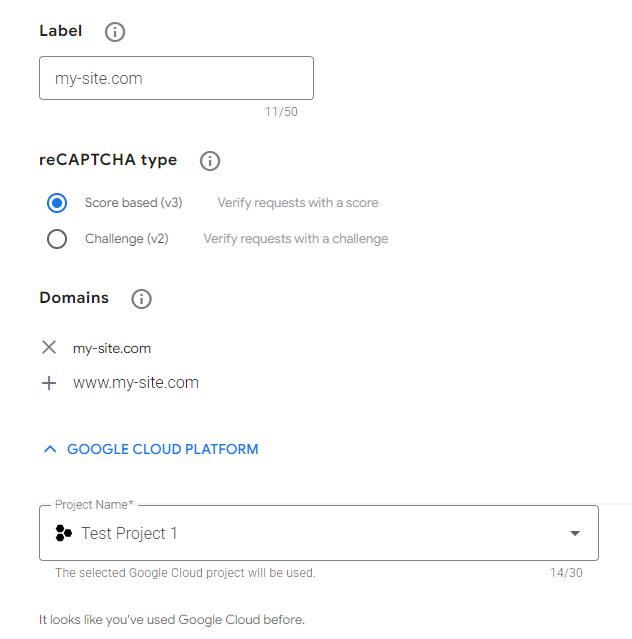
Leave domain verification on. Do not enable “Disable domain verification.”
If you are new to Google Cloud, read the terms, check the agreement box, then click Submit.
Google recommends one key per website, and separate keys for staging and production. For a standard Tiny Frog WordPress site, one Score based (v3) key that includes the live domain plus wpenginepowered.com is generally enough.
3. Copy the Site Key and the Secret Key
After submit, Google shows the new key.
- Copy the Site Key.
- Copy the Secret Key if it is shown on the same screen.
If you only see a Site Key (common on the newer Google Cloud key pages):
- Open the key you just created (Admin console, or Google Cloud Console > Security > Google Cloud Fraud Defense > Keys: https://console.cloud.google.com/security/recaptcha ).
- Open the Integration tab.
- Click Use Legacy Key.
- Copy the legacy secret key from that dialog.
Gravity Forms still needs that legacy secret key when the add-on is connected as reCAPTCHA v3 Classic.
4. Email both keys to Tiny Frog
Paste both values into an email to the developer or project manager who requested them:
- Website domain
- Site Key
- Secret Key (legacy secret key)
Do not screenshot only part of a key. Copy the full string.
Tiny Frog will paste the keys into WordPress under Forms > Settings > reCAPTCHA and set the score threshold (default 0.5). You do not add a CAPTCHA field to the form when score-based v3 is in use.
Notes
- Subdomains are covered when you add the root domain. If you add
example.com, you do not also needwww.example.com. - You can add up to 250 domains on one key.
- A v3 success token expires after a few minutes. That is a Google limit, not a Tiny Frog setting.
- Google sends some visitor behavior data to evaluate risk. The reCAPTCHA badge on the site is how that notice is shown. Review Google’s terms and your privacy policy if you have not already.
- Do not create a Challenge (v2) checkbox key for the standard Gravity Forms add-on setup. A v2 checkbox key is a different key type and is not interchangeable with a score-based key.
Source Documentation
Official Google docs: https://docs.cloud.google.com/recaptcha/docs
Create-key docs: https://docs.cloud.google.com/recaptcha/docs/create-key-website
Gravity Forms add-on docs: https://docs.gravityforms.com/using-the-recaptcha-add-on/
Gravity Forms setup docs: https://docs.gravityforms.com/setting-up-the-recaptcha-add-on/