

An application password is a separate password made just for an app or bot, like your AI bot or an MCP connection. It is not your login password. The bot uses it to connect to your website, and you can turn it off at any time without changing the password you use to log in.
We use application passwords because they keep your real login private, they can be limited to one bot, and they can be removed in a few clicks if you ever stop using that bot.
First, go here to log in:
https://www.your-site.com/wp-admin
Before you begin
- Have your bot’s settings screen open, so you can paste the password in right away.
Create the application password for the mcp_bot account
TinyFrog has added a dedicated bot user account, mcp_bot, to your website. This account only has the access your bot needs, so your bot stays separate from your own admin account. As an Administrator, you can create the application password for that account yourself, and it never has to pass through anyone else.
- Log in to your WordPress dashboard as yourself (your Administrator account).
- In the left menu, go to Users and choose All Users.
- Find the mcp_bot account TinyFrog added.
- Hover over its name and click Edit.
- Scroll down to the Application Passwords section on that user’s profile.
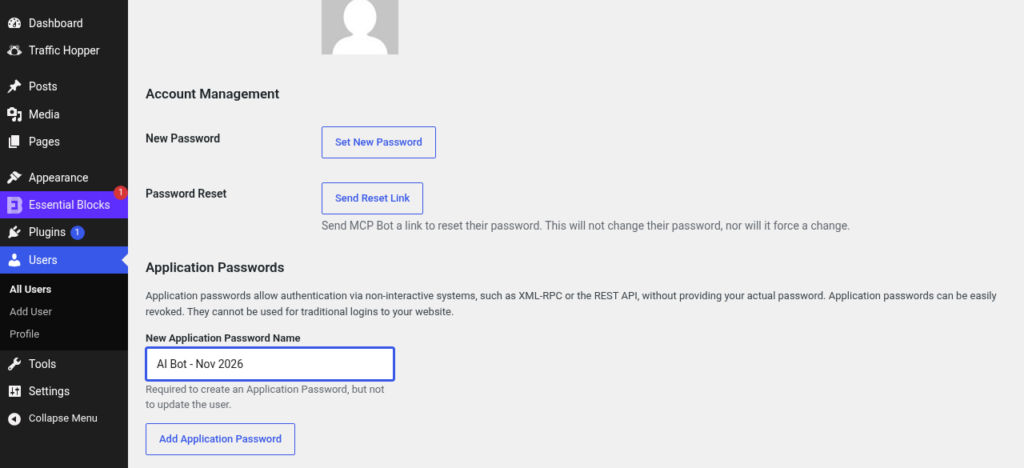
- In the New Application Password Name box, type a clear name, for example AI Bot – Nov 2026.
- Click Add New Application Password.
- Copy the new password right away.
- WordPress only shows it once. If you leave the page, you will need to make a new one.
- Paste it directly into your bot’s settings, along with the username mcp_bot (shown at the top of that user’s profile).
Example: Grok Bot
- In your chat with your bot in the Grok Bot app, ask it to save the password, for example: “Please save my WordPress application password for example.com as a secret.”
- The bot shows a secure card. Paste the password there. It’s saved on the bot and never appears in the chat.
- Then tell the bot the WordPress username and site URL that go with it.
- Don’t paste the password straight into a chat message.
- The bot owner or a manager can also add it under the bot’s Secrets settings on its Manage or Configure screen.
How to remove an application password
- Go back to the same profile screen you used above.
- In the Application Passwords section, find the password by its name.
- Click Revoke and confirm. The bot will stop connecting right away. Your login password is not affected.
Security Tips
- Never send an application password by email, chat, text, or a support ticket. Paste it straight into the bot.
- Make one application password per bot, so you can remove one without affecting the others.
- If a password is lost or shared by mistake, or you stop using a bot, revoke it and make a new one if needed.
- Using the mcp_bot account keeps your bot separate from your personal admin account, which limits what the bot can do on your site.